RaspberryPi

Play CDs with HomePods: Add AirPlay to a Vintage CD Player

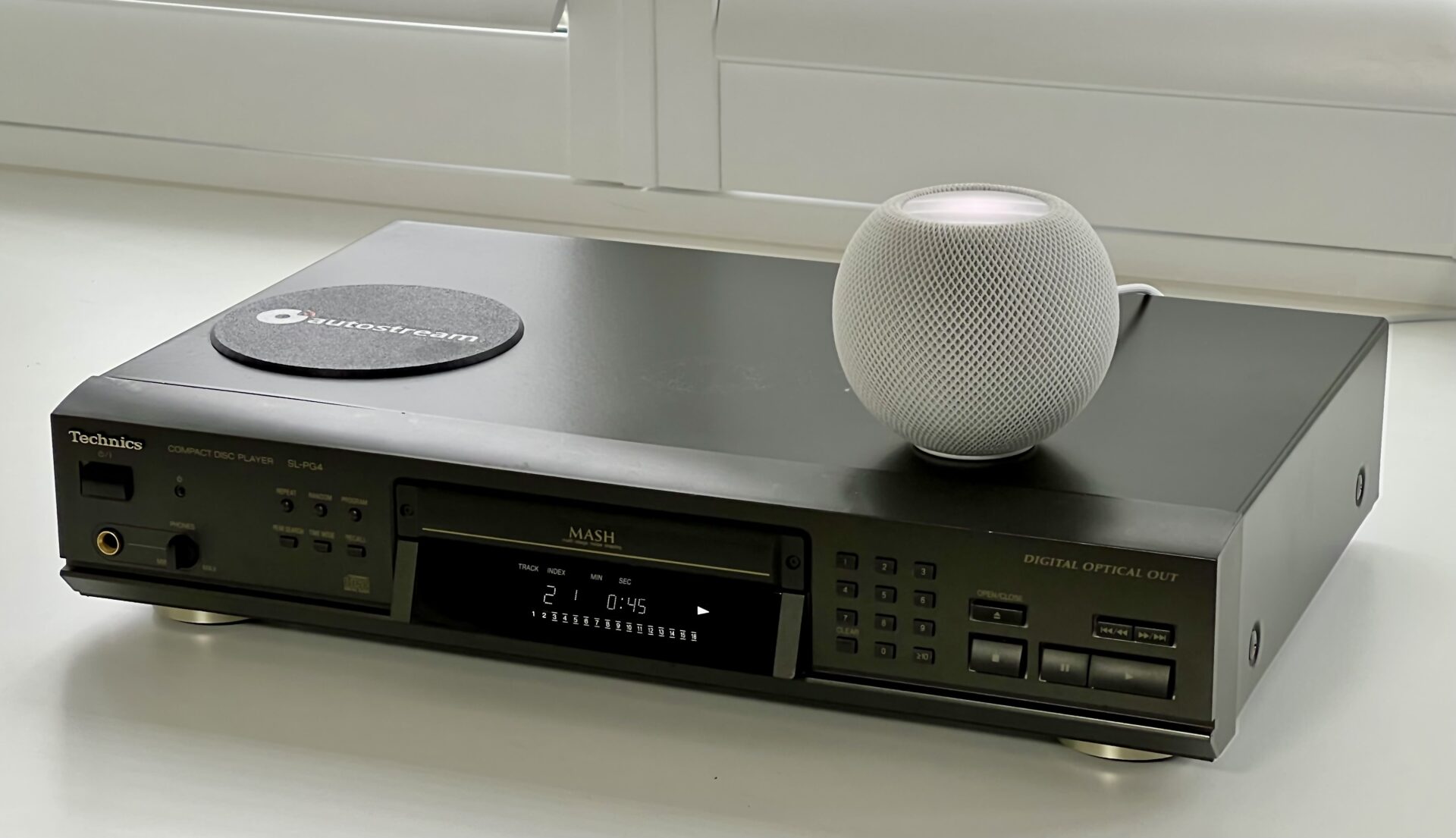
In this project, I’ll show how to convert a bog-standard CD player into a fully self-contained AirPlay CD player that “just works”. No external boxes. No fiddly startup rituals. Put in a CD, press play, and listen on your AirPlay speakers.

At the heart of the build is lo-tech autostream, which is free and available on GitHub.

  • Supports AirPlay and AirPlay 2 speakers and multi-room audio
  • Full digital audio with no compression
  • No external boxes, old iPad’s or MacBooks
  • Uses a Raspberry Pi as it’s audio streamer
  • One power cable

Depending on what you have in the parts drawer, this project will cost around £40-£60.

What You’ll Need

  • A classic Hi-Fi CD player (Technics SL-PG4 used here)
  • Raspberry Pi Zero 2W (to run autostream)
  • lo-tech autostream software (free!)
  • USB to SPDIF adapter
  • 3D-printed mountings
  • Basic hand tools & soldering equipment

Design Goals

  • To work like a normal CD player: zero start-up time or setup fuss
  • Embed everything within the CD player – no external boxes, dongles or power adapters
  • Provide simple iPhone volume control using autostream

The result should feel like a commercial product, not a weekend hack.


Step 1: Choosing a CD Player

There are plenty of low-cost second-hand Hi-Fi CD players available on eBay. The only real requirement is that it has an optical output (and works, of course). The various early 2000s Technics players (SL-PG3/4/5) are cheap, have lots of room inside, and work great as disc transports being relatively late in CD evolution. Made in Germany too.

Since we’re connecting via optical, we’re bypassing the DACs so the audio quality will be essentially the same whatever player you choose. In some respects, the PG3 might be the best option as it lacks headphone output meaning it’s probably possible to mount the Pi right behind the plastic front panel there and avoid any external case mods.

For even lower cost, a DVD player like a Samsung DVD-HD850 will also play CDs just fine. But CD players tend to provide more room inside, offer quicker startup, and generally have more front-panel controls for functions like repeat.


Step 2: Installing the Raspberry Pi

The Raspberry Pi Zero 2W is the ideal brain as it’s cheap, has built-in WiFi, and very low power consumption. The 3D printable bracket to mount it and a Cubilux SPDIF dongle directly in the Technics PG3/4/5 can be found on Printables here. The dongle is secured by a snap-on cap – so print it in PETG as it needs some flexibility.
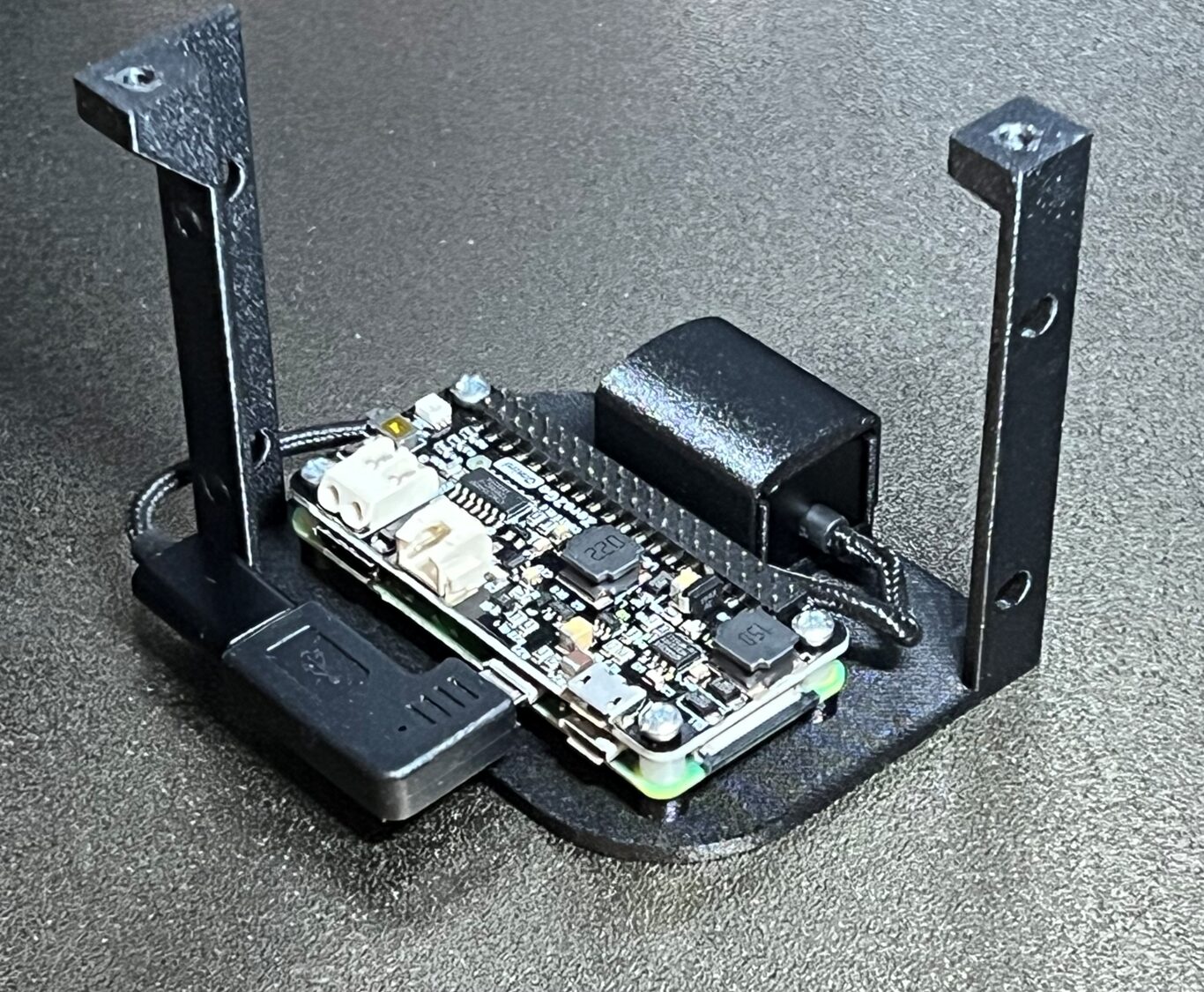
This fits in the machine in what was free space:
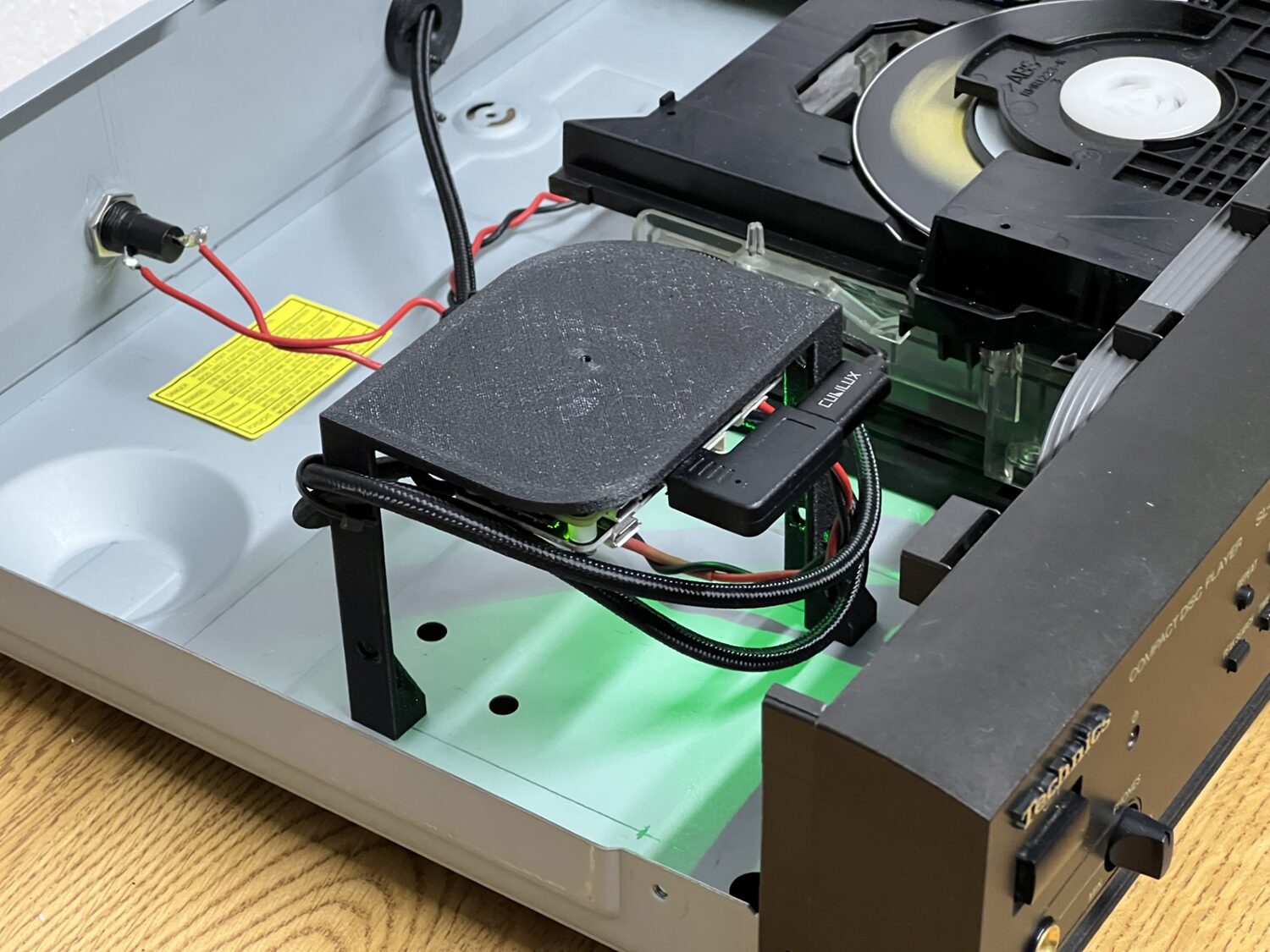
The reason for mounting the Pi near the top of the case is so that we can cut a hole (114mm hole saw) in the lid to let the WiFi signal though:
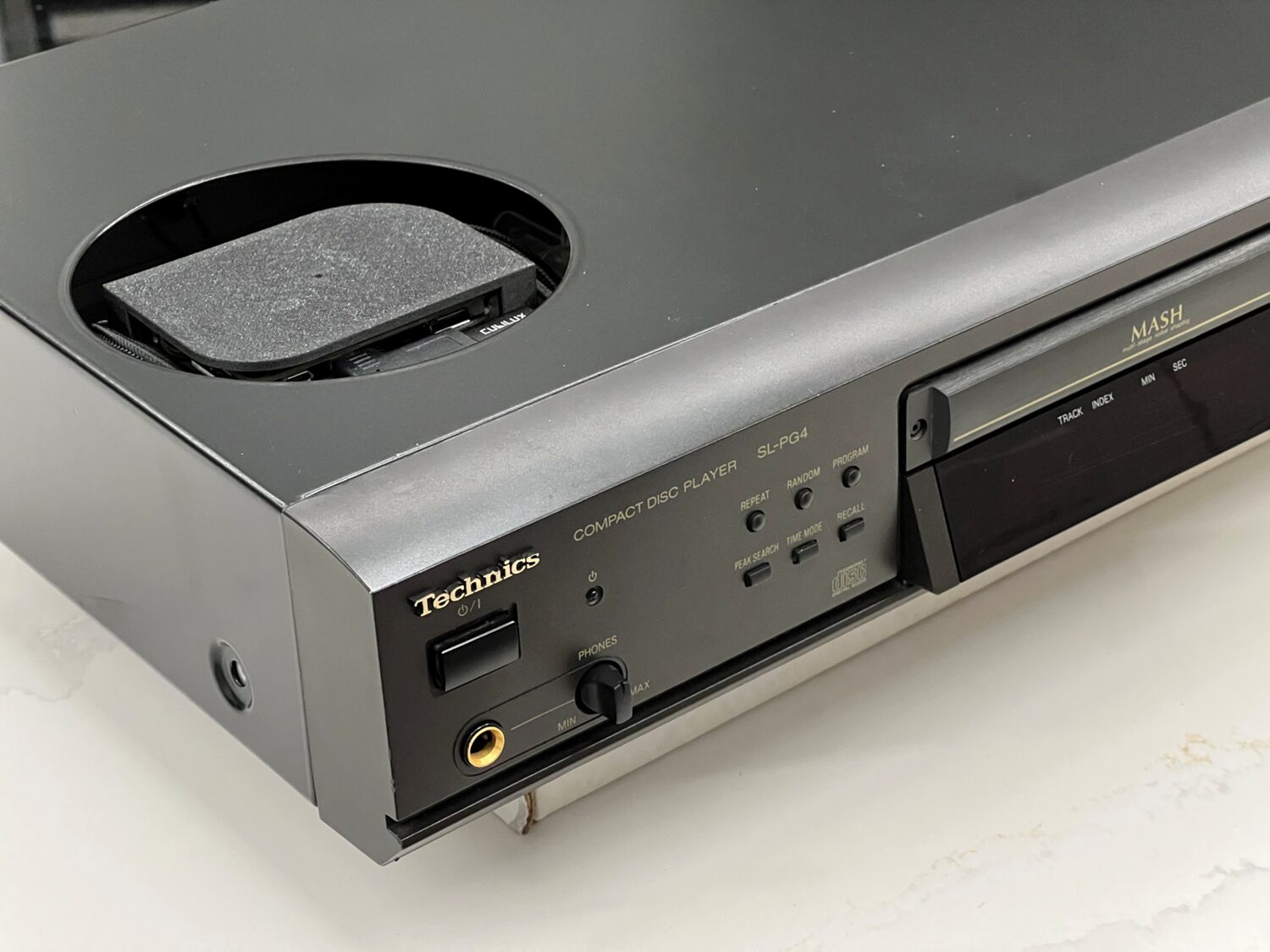
This keeps everything internal while avoiding the RF issues that come with burying Wi-Fi inside a metal box.

The Pi ZeroW will also work – but it’s very slow by comparison to any of the newer boards and more likely to cause audio glitches, for example due to RaspberryPi OS background tasks like updates.


Step 3: Powering the Pi

In short: We need about 1.5W to power the Pi Zero 2W and Technics power supply has enough headroom, avoiding the need for another power connection or transformer.

To keep the system truly self-contained, I wanted to power the Pi directly from the CD player’s internal power supply, keeping a single mains connection. With the aid of the service manual for the Technics player, the various low-voltage supplies could be easily identified:
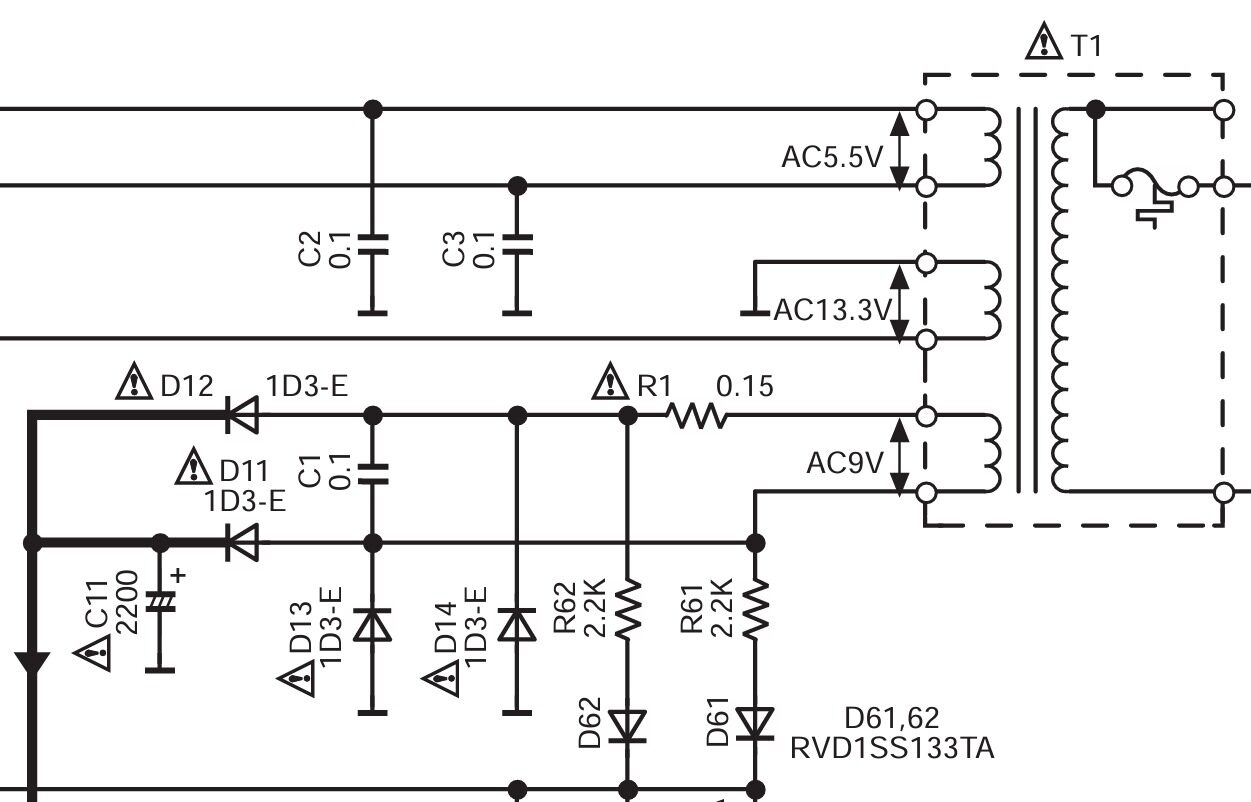
⚠️ Safety Warning: If you’re not confident working inside mains-powered equipment, stop right here and seek help or just use autostream in an external box. In any case, do not work on the mains side of the PSU – find a suitable low-voltage rail.

The Pi Zero 2W can run autostream at less than 1W average (and 1.3W peak) with some tuning – the settings to achieve this are in the wiki. Whilst the transformer output and loading are not known, feeding directly from C11’s terminals to the UU Gear Zero2Go power supply hat for the Zero doesn’t seem to add any heat to the PSU, and it’s unlikely Technics ran the player right at the PSUs limit. I’ve used a 1A ferrite bead to reduce switching noise going back into the CD player and a 500mA fuse on the back panel. The UU Gear board is ideal in this application as it allows us to connect directly to the unregulated DC supply.
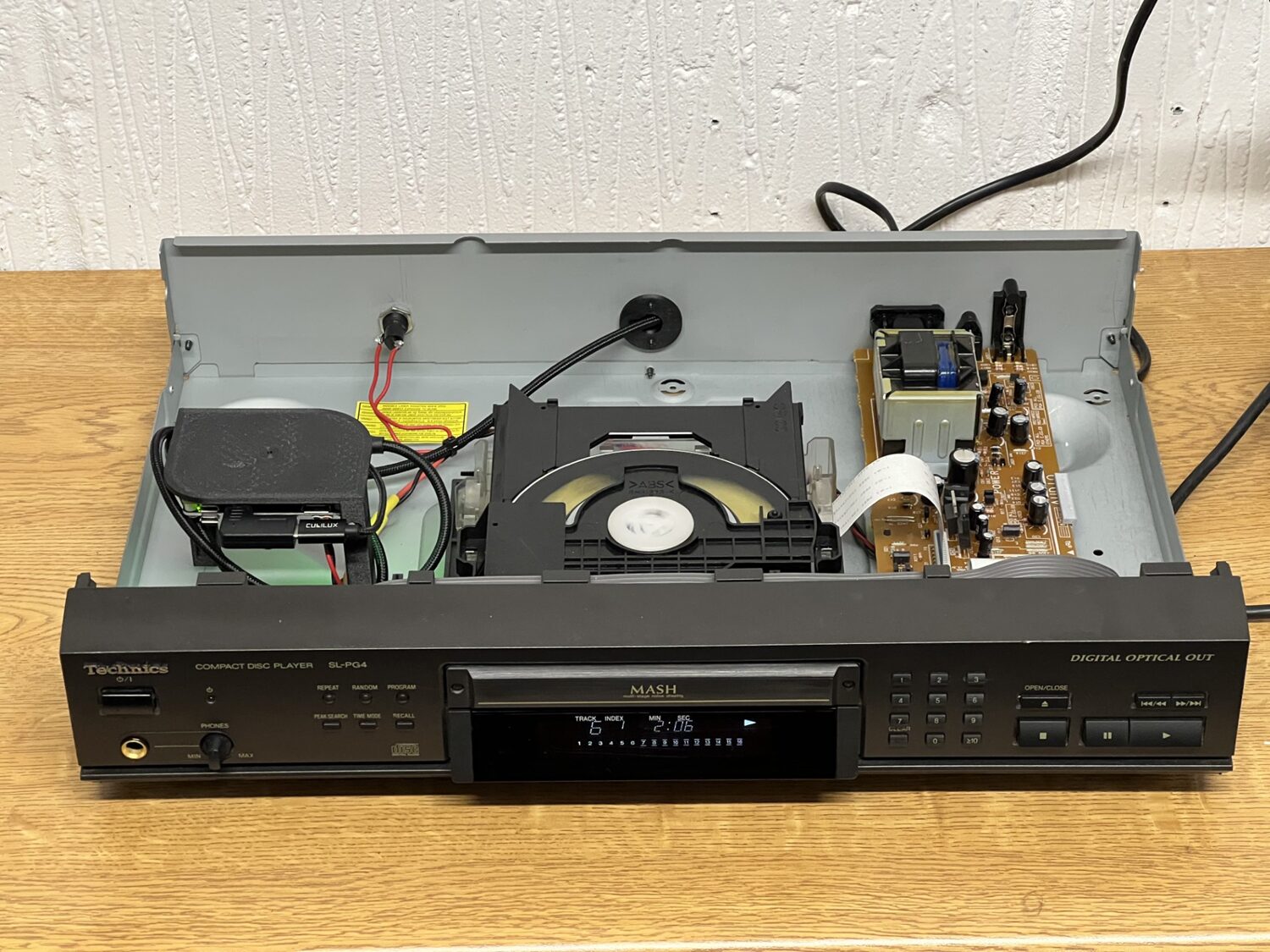
The power switch on the Technics player is soft—meaning the PSU is always active. So the Pi will boot up as soon as the power is connected and be ready immediately thereafter whenever the player is turned on. With an idle power consumption of about 0.7W when waiting for music, it’s not going to get hot or run up the electricity bill either.


Step 4: SPDIF Digital Audio

This build keeps the signal path clean (and reversible) by using the optical output. It means we have the optical cable connected to the original port then routed straight back into the machine through a grommet. The 3D printed grommet provides a smooth curve for the right-angle SPDIF cable:
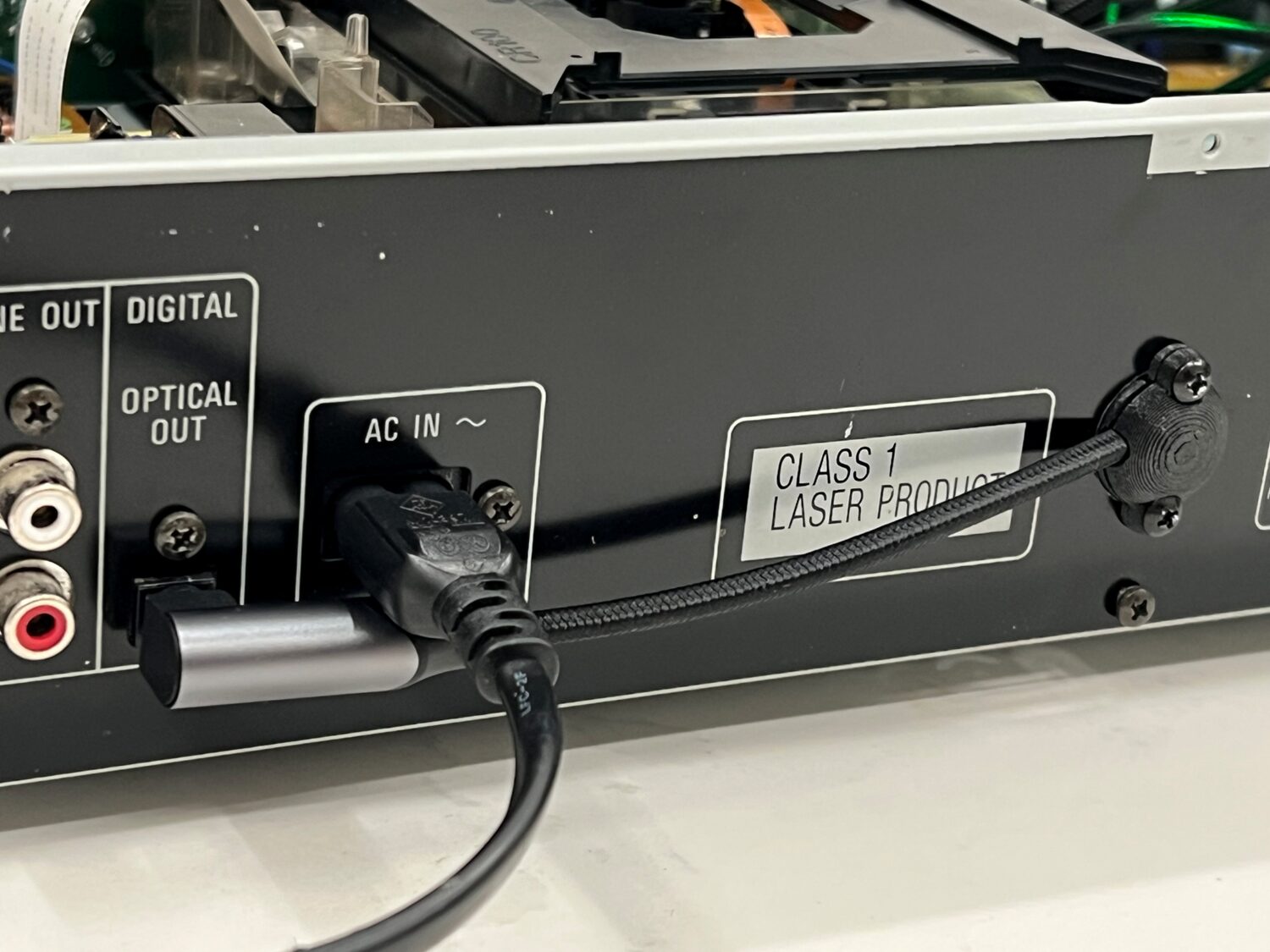
Audio Flow

  1. CD player outputs digital audio via optical SPDIF
  2. USB to SPDIF adapter presents bit-perfect digital CD data as a USB sound device
  3. autostream captures and sends audio via AirPlay (using Owntone)

With the SPDIF dongle mounted along side the Pi, all electronics are hidden inside the case.


Step 5: autostream

This project works because of lo-tech autostream. It’s a skin to ffmpeg (for input) and owntone (for output) with its own very simple mobile web app to control which speakers are playing and how loud:
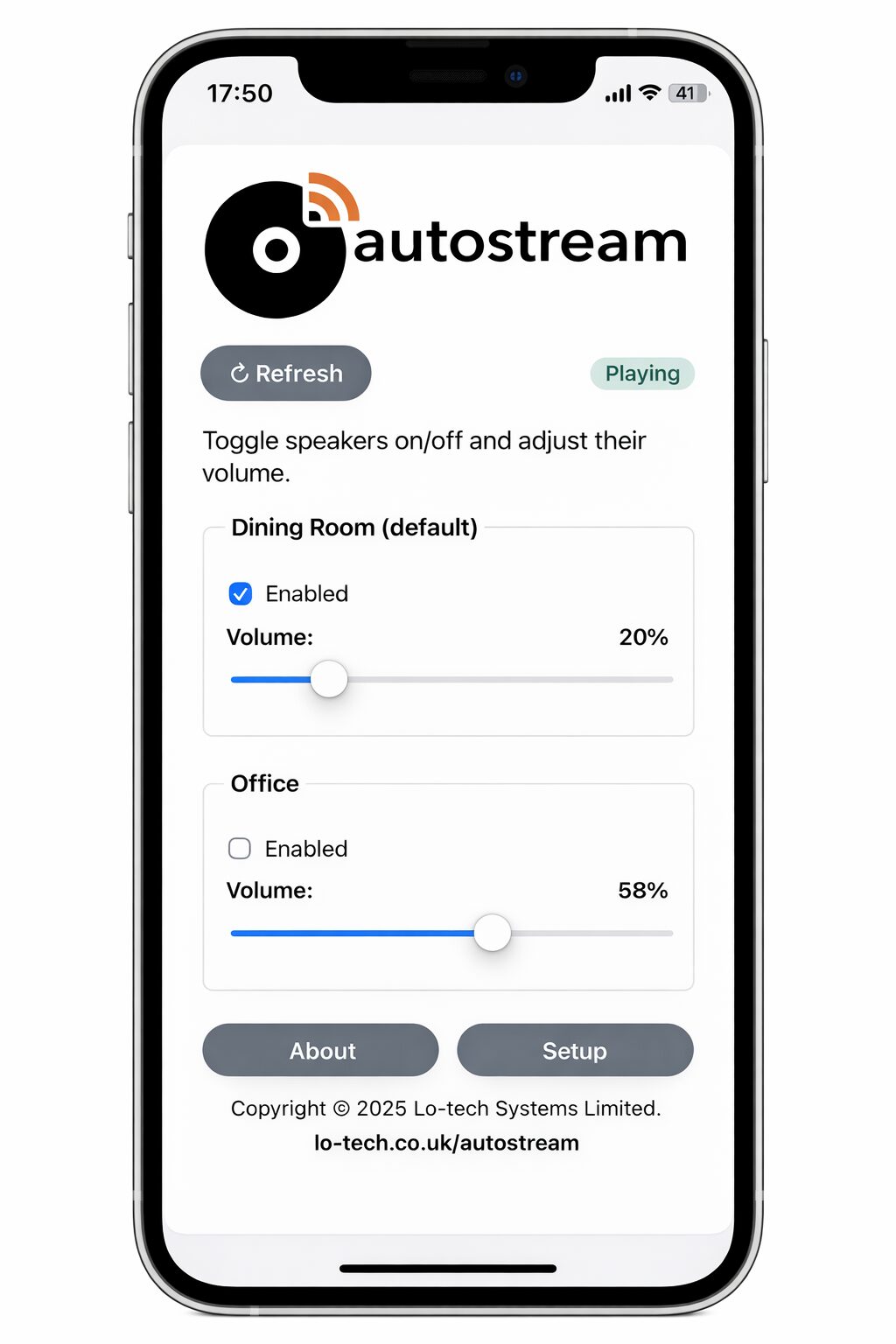
It also has system monitoring services that keeps the Pi running, for example by reconnecting to WiFi if it drops. autostream:

  • Runs headless and continuously listens for audio
  • Automatically sends audio to selected AirPlay speakers
  • Provides a simple mobile web interface for:
    • Volume control
    • Selecting which AirPlay speakers are active
    • Adjusting all settings
  • Provides a hotspot based WiFi setup utility if WiFi connection fails at boot (for example, if you’ve changed your router)

No manual pairing. No apps to install. No user accounts.


Finishing the Job

The finished result looks and behaves exactly like a normal CD player—except the sound comes out of AirPlay speakers. A classic CD player on the outside with unmodified user interface: just press play.

  • In day-to-day use, it feels like the CD player was always meant to support AirPlay.
  • Uses inexpensive, easily sourced hardware (some of which you may already have)
  • Preserves the original CD player functionality
  • Works entirely in the digital domain and so preserves CD quality
  • Leverages autostream’s always-on design
  • Could easily be used for other Hi-Fi components—most obviously record players.

In Conclusion…

I realised that I missed my old CDs. Maybe I just quite liked the 90s.

Thanks to owntone providing the AirPlay output and Technics thoughtfully providing their CD players with always-on PSUs and loads of space inside them, this project exactly preserves the way the CD player worked and adds multi-room WiFi streaming.

autostream turns old Hi-Fi equipment into something that fits naturally into a modern, multi-room setup, without changing how we interact with it at all. Perhaps, the player Technics would make now.


Streaming a Turntable or CD to AirPlay Speakers

This article explains how to stream audio from a turntable or CD player to AirPlay and AirPlay 2 speakers using a Raspberry Pi.

Hi-Fi was simple; a literal one-step process. Insert CD or drop the needle, and the music plays. But modern streaming pull us in the opposite direction, adding apps, accounts, cloud services, adds, and of course the inevitable subscription.

There’s something quite nice about a rack of records. But there’s also something quite nice about multi-room audio and wireless speakers like HomePods. autostream brings the two together, preserving the Hi-Fi experience while letting your music play anywhere. With it, your turntable or CD player (or tuner or cassette deck) can play directly to AirPlay and AirPlay 2 speakers. With the simplest possible interface: choose where the music plays and how loud — nothing more.

AirPlay becomes the way sound moves around your home. Your Hi-Fi at its centre. Your vinyl in perfect sync playing in the lounge, study and kitchen – and all using the equipment you already enjoy.

autostream has been built to run on Raspberry Pi (the £13 Zero 2W and £20 Model 3A both recommended) so it doesn’t have or need cloud services or user accounts. It runs locally, under your control. And it’s built to keep itself up-and-running, always ready for the next track.

If that sounds like your kind of system, the code and step-by-step install guide (including a guided setup) are available on GitHub right now.

RaspberryPi Based – But Not Complicated

The software installs directly on a Raspberry Pi using an included script. If you’re comfortable connecting to a Pi over SSH, you’re just three copy-and-paste commands away from having it running.

And if that’s not your thing, a pre-built microSD card image is in the works — check back soon.

Raspberry Pi VGA HAT, 24-bit 1080p

lo-tech-vga-r01-banner

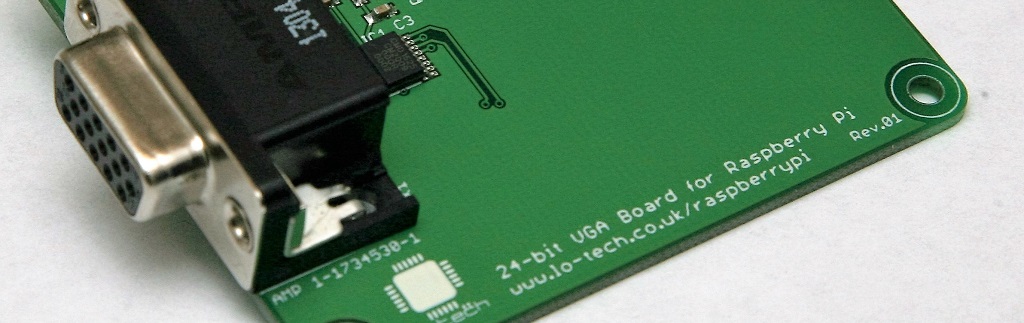
The Raspberry Pi uses HDMI for it’s built-in display interface, and it’s well documented that a second screen can be connected to the GPIO header when switched to ‘display parallel interface’ (DPI) mode. The DPI is powered from the Raspberry Pi’s GPU and so has the same performance and capabilities as the HDMI port – 1080p, 24-bit colour, 60Hz.

Project boards exist already to connect a VGA screen to the GPIO, but these are very simple designs and have some limitations such as 6-bit colour and sensitivity to interference from the wireless peripherals in the RPi 3. The RPi GPIO is also stressed by the TTL control signals in the VGA interface and the project boards lack the certifications needed to be offered as finished products.

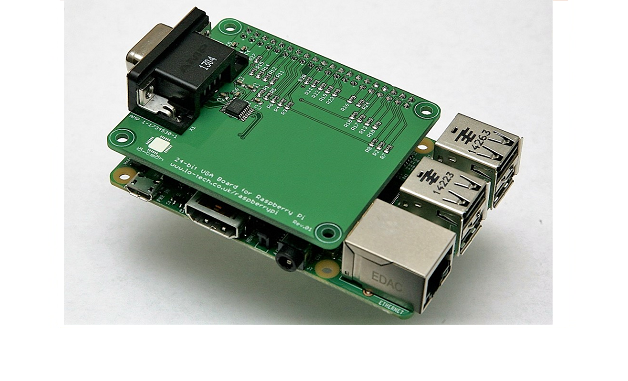
The Lo-tech Raspberry Pi VGA Board aims to address these problems, providing a true-colour VGA Adapter in a ‘HAT’ PCB format that will provide a reliable VGA output for primary or secondary display purposes whilst protecting the RPi, both from ESD when the screen is connected hot and from over-stressing the GPIO outputs via buffering of the key control signals.

I’m excited to report that this board has just cleared EMC testing, meeting EN 55032:2015 Class B limits, and ESD testing, passing BS EN 61000-4-2:2009 level 4, and so can be pre-ordered today (first deliveries expected approx. February 2017).

vga-r01-slider

How Much Faster is the New RaspberryPi?

Another new version of the every-popular RaspberryPi has been released, and this time the form factor has stayed the same (as the B+) and it’s the CPU and memory that get the attention: single-core ARM6 is replaced by quad-core ARM7, and the RAM doubled to 1GB. This opens up the platform to Ubuntu and should help stave off some of the competition for a while.

How much faster is it?

The box claims 6x improvement, and of course real-world scores will depend on the workload and being able to keep those four cores busy. But anyway, here are the Geekbench scores I’ve run on the RP1-B+ and the new RP2-B:

RP1: http://browser.primatelabs.com/geekbench2/2536129

RP2: http://browser.primatelabs.com/geekbench2/2536151

1329 puts the new model roughly comparable to something like an Intel Core Duo T2400 (from 2009), adequate for every-day desktop computing in many cases. For me though the board is much more interesting as a network server or embedded application server.

MediaWiki for example is frustrating on the original RaspberryPi, so with an existing Raspbian image updated to work with the new platform (simply ‘sudo apt-get dist-upgrade’ then reboot), I measured response via ‘time wget …’ – the new board is consistently 3x or 4x faster than the older model, providing sub-second response times in many cases (with APC PHP caching enabled). At least for a small wiki, this makes the platform pretty usable.

SD card read performance remains at about 18MB/s for both boards (measured with a SanDisk Ultra 16GB), but iperf network tests show a usable improvement in full-duplex operation – the RP2 managing about 150Mbps total throughput, compared to about 110Mbps on the RP1.

An interesting aside is the power consumption – it’s slightly up on the original B+, but still it peaked at only about 2W during testing. So a RaspberryPi 2 desktop PC should use at least 15W less than even a carefully specified Intel machine, and with Windows 10 bring readied for the new RaspberryPi, this might not be so unrealistic. Given some 10 million office workers in the UK, saving even 15W on each one would add up to 300 GW hours per annum (and about 200,000 tonnes of CO2).

But anyway, to sum up – a great upgrade to an already useful system, having kept both the price and the power consumption about the same. Form factor is identical to the B+, and the GPIO header pinout is also the same. Micro-SD card storage can be a bottleneck, especially for random workloads, but in very simple testing performed here the board is consistently 3x to 4x faster than the original overall.

A new version of the Lo-tech GPIO Interface for the RaspberryPi is due shortly – watch this space!

GPIO Interface Board for Raspberry Pi B+

I’m excited to announce the immediately availability of a new PCB, the Lo-tech GPIO Interface Board for Raspberry Pi Model B+!

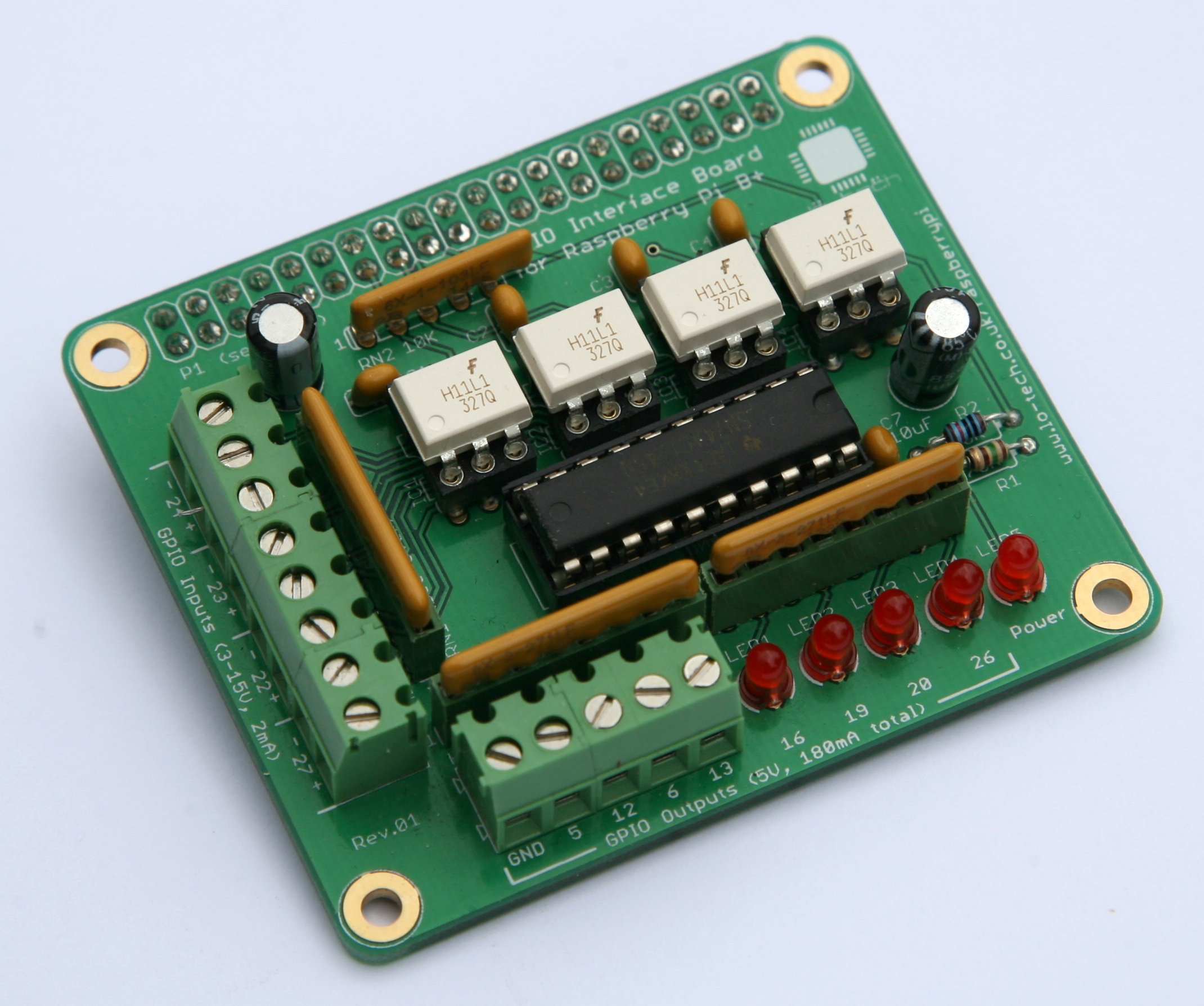
Lo-tech-gpio-interface-board-front-assembled

This is the first Lo-tech PCB not targeted at retro computing directly, but the Raspberry Pi is of course an interesting hobby ecosystem in its own right and something that can find a practically unlimited range of use-cases. Looking around for a GPIO interface for the new model, I couldn’t find anything available (OK that was immediately at launch of the new model) and certainly nothing that offers a Radio Shack style build-it-yourself experience, hence why this board now exists.

This board connects directly to the expansion header on the new Mobel B+ Raspberry Pi, and provides 4 opto-isolated inputs and 8 outputs. When powering 8 LEDs and being polled a few times a second, the power consumption of the Raspberry Pi with the board fitted is only around 1-2 Watts, making this combination particularly suitable for embedded applications such as network connecting things around the house for monitoring or alerting.

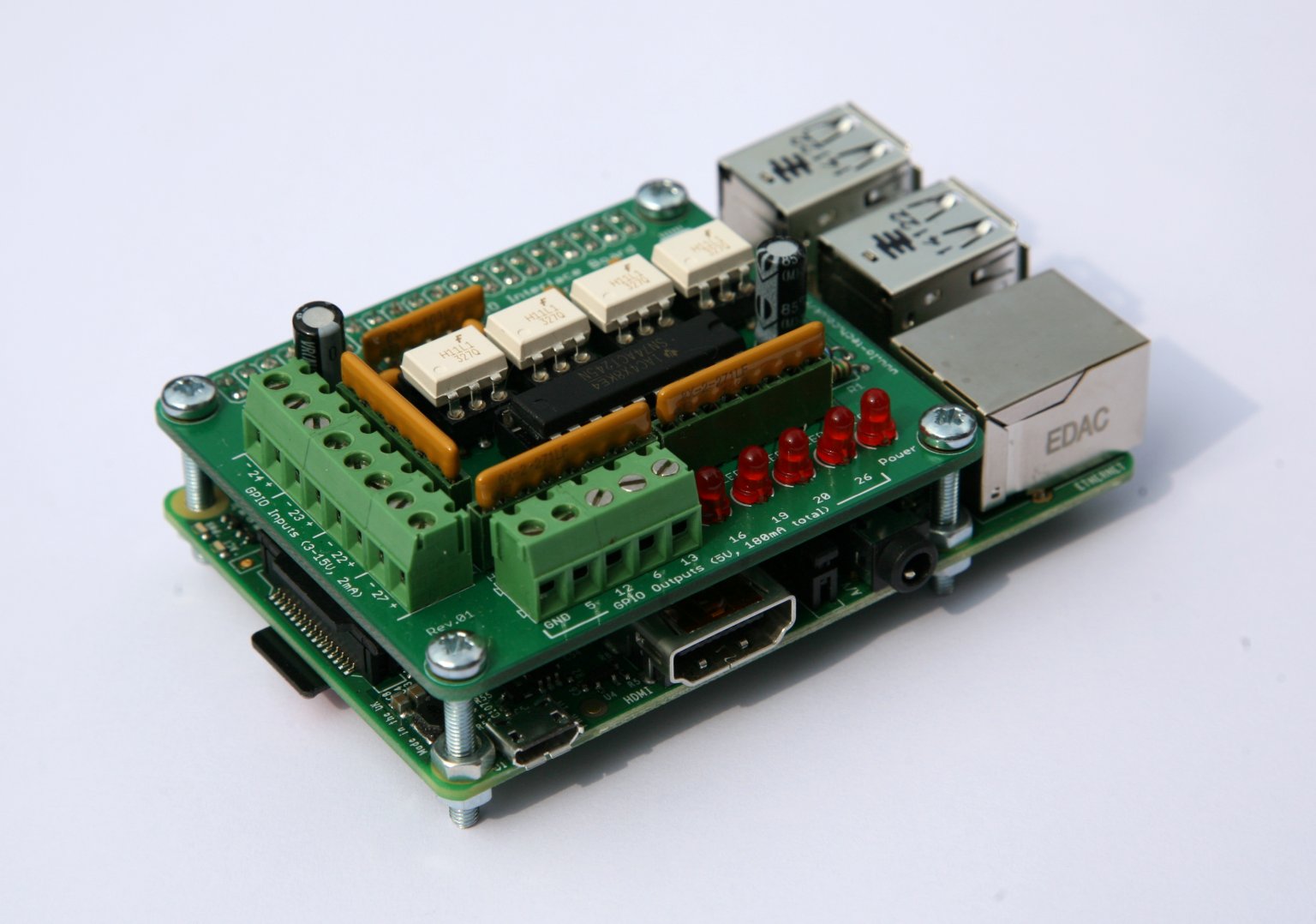
The board follows the design of the Raspberry Pi B+, making for a tidy installation:

Lo-tech-gpio-interface-board-mounted-on-RaspberryPi-Bplus

Full technical specifications, schematic, and parts list are available on the wiki page, and PCBs are available in the store now.